

Why your AI agent gets captchas and blocks from Cloudflare and DataDome, and how to fix it (2026)
AI agents often get captchas or blocks when browsing because they use a browser that sites can detect: a datacenter IP, an automated browser and no login. The fix that holds is to run the agent in the Chrome you use every day, which has your IP, your fingerprint and your sessions, and which sites already trust.
When your agent’s browser hits Cloudflare or DataDome, it gets a challenge page, a captcha, a 403, or a page that never finishes loading. The same page loads fine when you open it yourself.
Most guides on getting past them are a list of tricks for a headless browser. This one explains what the two services check, and why the browser that gets through most reliably is the one you already use.
The three kinds of block
| Block | What you see | Who decided | What fixes it |
|---|---|---|---|
| The site refuses agents | A 403 or a page saying agents are not allowed | The site, or its CDN settings | The site’s permission or its API |
| Bot detection | A challenge page, a captcha, a 403 | Cloudflare, DataDome and the like | A browser that is not pretending |
| Too many requests | A 429 | The site’s rate limit | Going slower |
Most blocks are the second kind: the site never decided against agents, its bot detection decided your agent’s browser is a bot. Since September 15, 2026, Cloudflare also blocks the bots it classifies as agents by default on the pages that display ads, for domains newly onboarded.
What Cloudflare and DataDome check
Both score every request on a few families of signals:
- The IP. Its reputation, and whether it belongs to a datacenter, a residential network or a mobile one. DataDome flags datacenter IPs and residential proxies, and it judges behavior too, so a residential IP alone is not enough.
- The TLS handshake. The way a client opens the connection has a fingerprint, and a headless library’s does not always match the browser it claims to be.
- The browser’s signature. JavaScript checks such as
navigator.webdriver, the plugins, thewindow.chromeobject, the GPU, the fonts and the screen. - Behavior. How the page is scrolled, clicked and typed into, and how fast.
- Cookies. A browser that already passed a challenge carries a cookie that says so
(Cloudflare’s
cf_clearancelasts 30 minutes by default), and a browser you use every day also holds your signed-in sessions. A fresh browser holds none, so the site treats it as a stranger, and anything behind a sign-in is out of reach.
Cloudflare shows a challenge page when the score is low. DataDome answers a Device Check, a captcha or a block page.
What people try, and why it stops short
- Stealth plugins. Stealth plugins and patched drivers (puppeteer-extra-plugin-stealth, undetected-chromedriver, nodriver, Patchright) work on the browser’s signature. Results vary by tool and by site: in a 2026 benchmark on 31 Cloudflare-protected sites, one tool was never blocked and the others were on some. Detectors change, so a tool that passes today can fail next month.
- Random delays and mouse movements. They help with behavior only.
- Residential proxies. They fix the IP, not the signature or the login, and they cost per gigabyte.
- Captcha solvers. They answer the captcha after the site has already decided you are a bot, and each answer costs time and money.
Stealth plugins and delays change neither the IP nor the cookies. A patched headless browser in a datacenter, with an empty profile, still looks like a bot on two of the five families.
The solution hidden in plain sight: your own Chrome
Most fixes stack more tools on a headless browser: Playwright, a stealth plugin, a proxy. The browser least likely to be blocked is already open on your computer: your own Chrome. You would notice the day sites started flagging it, and they don’t, because it has every property they check:
| Signal | Headless browser in the cloud | Your own Chrome |
|---|---|---|
| IP | Datacenter | Your home or office connection |
| TLS handshake | A library’s, if not patched | Chrome’s |
| Browser signature | Patched, partly | Real |
| Behavior | Scripted | Scripted, at a human pace if you ask |
| Cookies | None | Your sessions, and challenges passed |
That’s why enabling your Agent to automate the Chrome you use in everyday life would solve most of the bot detection issues.
Introducing Reduck MCP
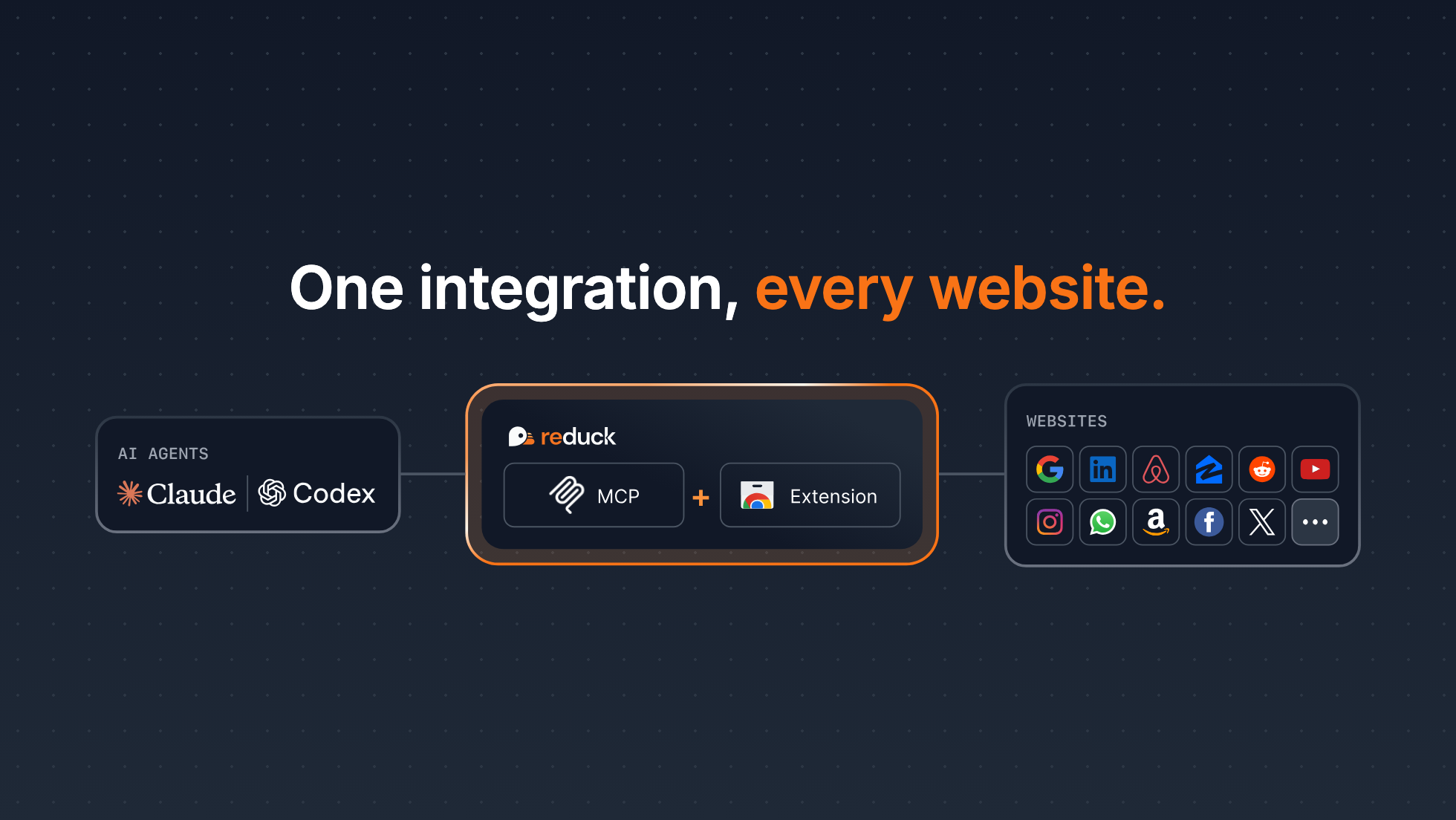
That’s why we built Reduck MCP: the easiest way for an agent to integrate and automate any site you use.
Reduck MCP allows agents to discover, run and create browser automation scripts that serve as tools.
Scripts run in your own Chrome, through our extension, which allows your agent to work where you are logged in: no credentials exposure, and the risk of bot detection is minimal, as sites see your usual fingerprint and residential IP.
Demo
The same prompt, given to Claude twice: find a Reddit post from a vague memory, once with Reduck MCP and once with Claude in Chrome.
With Reduck, Claude opens the thread with reddit.com/get_thread and confirms the post’s three
parts. In Chrome, it finds the link through Google after 58 s, but cannot open the thread, so it
cannot confirm it is the right post.
Get started in minutes
- Create an account at reduck.ai
- Install our Chrome extension in the Chrome you are logged in with, and pair it with your account
- Install Reduck MCP
On Claude Code CLI:
claude mcp add reduck --transport http --scope user https://mcp.reduck.ai
On Codex CLI:
codex mcp add reduck --url https://mcp.reduck.ai
For other MCP clients, see our Onboarding Guide.
Start a new session and try a prompt like:
Using Reduck MCP, search on Google the top 3 latest posts of the week on "AI Agents" on LinkedIn. Then return the profiles of potential buyers of B2B AI agents.
Limits
- Too many requests is still too many. A site that limits how often anyone can ask limits you too, from any browser: pace your runs on a strict site like LinkedIn.
- Your Chrome has to be open. For runs while your computer is off, use a managed browser in the cloud.
What Reduck does on each kind of browser, and how to keep the risk low, is in Stealth practices.
Learn more
- Stealth and logged-in sessions: what your agent gets, and what it does not change
- Supported browsers: Chrome, Edge, Brave and Arc
- Discord: chat with us about issues and ideas