
How Hermes Agent can use a logged-in browser reliably with Reduck MCP
Hermes Agent has become in 2026 one of the most popular Agents with a stellar rise, especially with its self learning feature.
However, one of the key challenges it faces is on how to use a browser where it faces two major problems:
- Infra: the agent must be logged in to your sites, and must not be spotted as a bot, which is a real challenge today:
- Local browser, e.g. Chromium, have detectable browser signature
- Cloud browsers are spotted due to their datacenter IP
- Both are not logged in and can be tricky to set up consistently to use your credentials and operate behind login
- Reliability, cost and speed: even when the browser works, the model decides every click. It learns how a site works again on every task: that is slow, it fills the context, and a weaker model gets lost halfway.
Introducing Reduck MCP
That’s why we built Reduck MCP: the easiest way for an agent to integrate and automate any site you use.
Reduck MCP allows agents to discover, run and create browser automation scripts that serve as tools. Scripts run in your own Chrome, through our extension, which allows your agent to work where you are logged in — no credentials exposure, and same fingerprints so no bot detection.
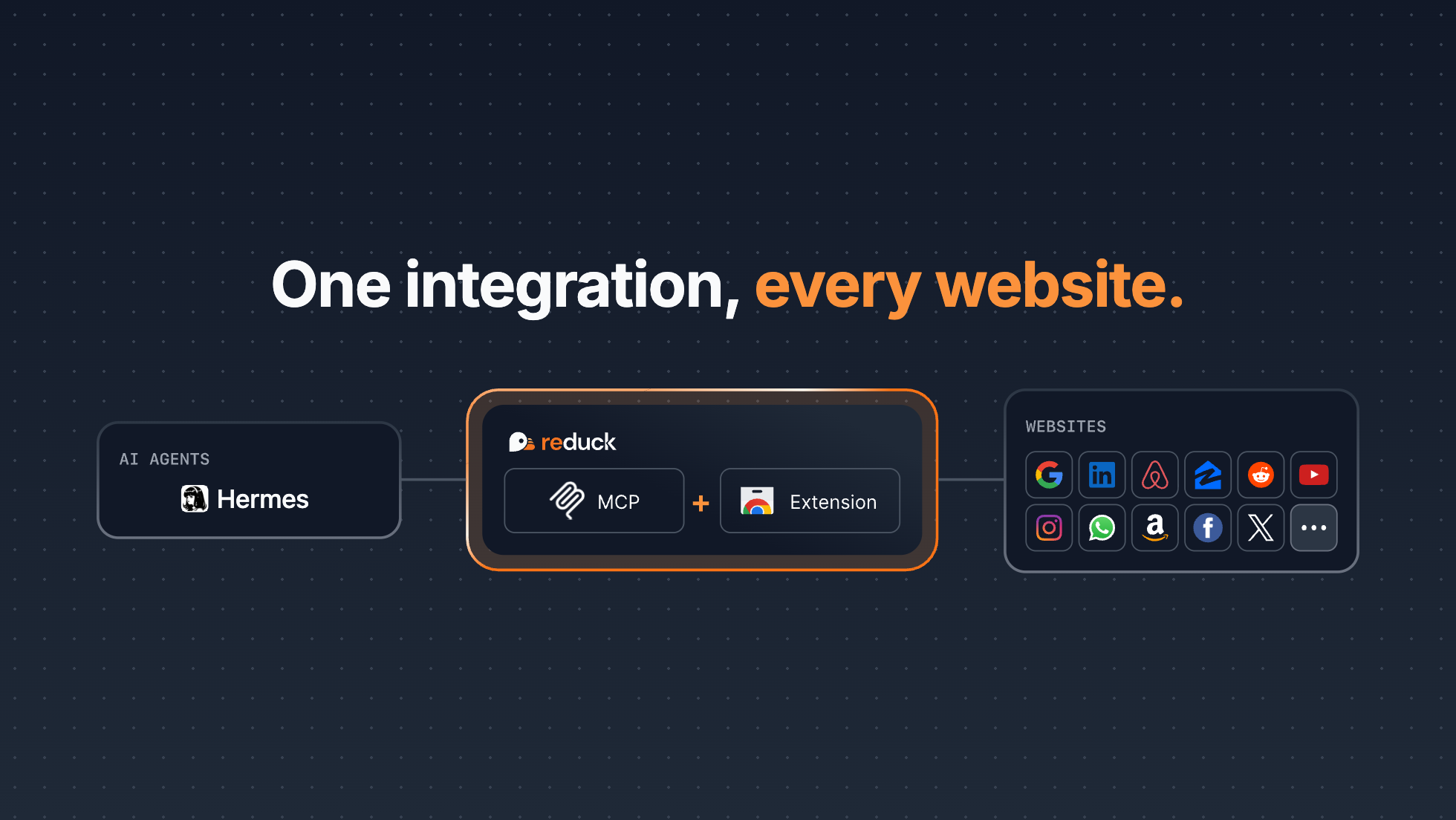
By connecting Hermes Agent to Reduck MCP, the two major issues we mention are solved:
- Hermes now operates on users’ logged-in Chrome profile through our extension, thus inheriting real browser fingerprints and IP. Therefore Hermes has no longer any credentials or bot detection issue.
- Hermes can use browser automation scripts as if they were tools, therefore saving tokens, and get work done faster and more reliably.
We have already observed tasks such as market discovery or invoice fetching taking 3 times less tokens when using Reduck MCP scripts over direct usage. A more detailled benchmark will be released soon.
Demo
Get started in minutes
- Create an account at reduck.ai
- Install our extension in the Chrome you are logged in with, and pair it
- Add Reduck MCP to Hermes, in a real terminal:
hermes mcp add reduck --url https://mcp.reduck.ai --auth oauth
hermes mcp login reduck
- Start a new session and try a prompt like:
Using Reduck MCP, search on Google the top 3 latest posts of the week
on "AI Agents" on LinkedIn. Then return the profiles of potential
buyers of B2B AI agents
Build your own scripts
If the library does not have the site you need, such as a government portal or your own ERP, ask Hermes to build the script with Reduck MCP:
Use Reduck MCP to create scripts for trends.google.com keywords
Hermes can then find your script with Reduck MCP, like any official one, and you can see it at reduck.ai/projects.
Key features
- Runs in your own Chrome: scripts run in your everyday Chrome through our extension, where you are already logged in. No profile copy, no debug port, no “Allow remote debugging” click. Your credentials stay on your machine, and sites see your usual fingerprint and residential IP, so the risk of bot detection is minimal. The extension connects out to Reduck, so it works even when Hermes runs in Docker or on a VPS: your Chrome only needs to be open.
- Learns a site once: a script is a saved automation with typed inputs and outputs. Hermes calls it in one tool call instead of clicking step by step, and gets the same result every time.
- Official Script Library: get started in minutes with the scripts we maintain for the most common sites, such as LinkedIn, Airbnb and Instagram.
- Parallel runs: up to 20 scripts run at the same time from a single tool call.
Learn more
- Hermes guide: setup details, and which Reduck tools to load
- Core concepts: scripts, devices and where a run happens
- Discord: chat with us about issues and ideas